OCI Email Delivery
Route your Openship mail server's outbound mail through Oracle Cloud (OCI) Email Delivery — free tier, good IP reputation, no PTR chores.
Oracle Cloud's Email Delivery service is a solid pick for an SMTP relay: it's free for the first 3,000 emails a month, and because your mail leaves from Oracle's own IP addresses (not a brand-new cloud IP nobody trusts yet), inbox providers are far less likely to bounce or spam-folder it.
What you need first
- An OCI account (Oracle's free tier covers this).
- A domain name you control, where you can add DNS records.
- An Openship mail server already set up. If you haven't done that yet, start with Email & webmail — you'll need it running before there's anything to relay.
Setup at a glance
Create an Email Domain and add the DKIM records
In OCI Email Delivery, create an Email Domain for your domain. OCI generates DKIM DNS records for it — add those at your domain's DNS provider. DKIM is a cryptographic signature that receiving mail servers use to confirm a message really came from your domain, so this step is what makes the rest of the setup trustworthy.
Add the SPF record
Add the SPF record from OCI's SPF guide at your domain's DNS provider. It's a one-line TXT entry that tells the world "Oracle's relay is allowed to send mail on behalf of this domain" — without it, receiving servers have no way to know Oracle is a legitimate sender for you.
Register your approved senders
OCI refuses to relay mail from any From address it doesn't recognize, so register the addresses you'll send
from as approved senders — either a specific address, or @yourdomain.com to cover the whole domain at
once (only available once DKIM is active). Do this in the OCI Console (navigation menu → Developer Services
→ Email Delivery → Approved Senders → Create Approved Sender), or from the CLI:
oci email sender create --email-address you@yourdomain.com ...Create SMTP credentials
Create SMTP credentials for an IAM user: OCI Console → Identity → Users → SMTP Credentials. The password is shown to you exactly once, so copy it somewhere safe the moment it appears — there's no way to view it again later.
Point Openship's relay at OCI
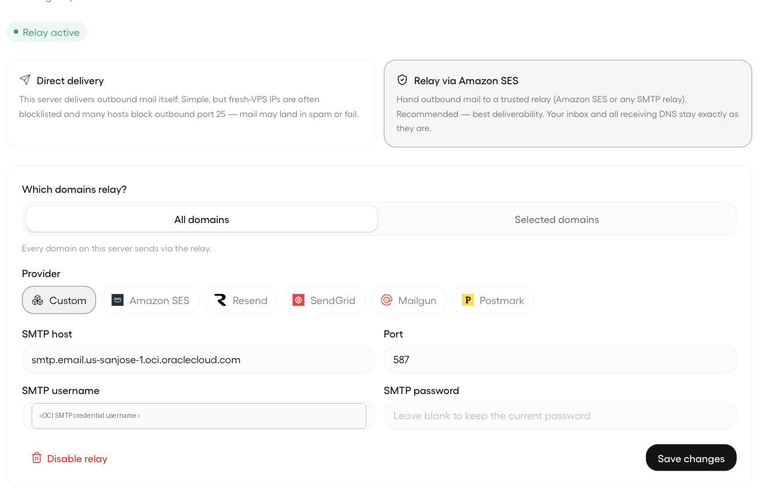
In Openship, go to Emails → Sending → "Relay via Amazon SES (or any SMTP relay)" and choose provider Custom. Fill in:
- Host —
smtp.email.<region>.oci.oraclecloud.com(swap in your OCI region) - Port —
587 - Username / Password — the SMTP credential you just created
The same host, port, and credential also work under Settings → Email, if you'd rather relay Openship's own notification emails through OCI too.
Gotchas / good to know
- Approved senders are mandatory, not optional. OCI's own docs put it plainly: "An approved sender must be
set up for all From: addresses sending mail through Oracle Cloud Infrastructure, or mail is rejected" (OCI
docs). Register each
address individually, or — once DKIM is active for the Email Domain — register the whole domain at once with
an approved sender of the form
@yourdomain.com(OCI docs), which covers every mailbox in one shot. - The SMTP credential password only appears once. The OCI Console shows it at creation time and never again — if you lose it, the only fix is regenerating a new one.
- Port 25 is blocked by default, and that's fine. OCI blocks outbound port 25 on tenancies created after June 2021. You can request a service-limits exemption if you need it, but relaying through OCI's SMTP relay on port 587 sidesteps that wait entirely — and as a bonus, your mail leaves from Oracle's well-reputed IPs instead of a fresh cloud IP that inbox providers are naturally suspicious of.
- You can skip the PTR chore. PTR (reverse DNS) is the record that maps a server's IP back to a hostname, and large mail providers often junk mail from IPs that don't have one. Because your outbound mail actually leaves through Oracle's relay IPs — which already have proper PTR records — your own instance's IP never needs one.